

Sources checked · By VFIX Communications
The migration report says the files arrived. On Monday, the project coordinator cannot open a proposal, while a colleague outside the finance team can open a folder they should not see.
That is a hypothetical example, but it points to a useful acceptance test: the right people should be able to do their work, and people outside the approved audience should not gain access. A successful copy alone does not establish either result.
Before moving a shared drive, name a business owner for each important folder, record who needs view or edit access, identify outside collaborators, and test the proposed destination with ordinary user accounts. Finish that planning conversation before the cutover date, not afterward at the front desk.
Build an access map that someone can approve
Create one working record for each distinct area, such as team templates, finance or a client project. Explain who needs the information and why.
- Purpose and owner. What belongs here, and who can approve access? The business owner decides the need; IT translates that decision into the platform's settings.
- Approved people or groups. Identify current staff roles and any named external collaborators. Check the membership of groups rather than trusting their names.
- Required actions. Separate reading, editing, uploading and managing access. Avoid giving management rights simply because someone needs to update a document.
- Current access routes. Record access through the parent folder or site, group membership, direct sharing and sharing links. Mark exceptions for review.
- Destination and review date. Name the proposed site, library, drive or folder, plus when temporary access should be reconsidered.
- Pass and fail tests. Write down one task an approved person must complete and one access attempt that must be denied.
Keep the map in a restricted business location. Use folder labels and roles rather than copying payroll figures, client documents or patient details into a general project ticket.
A dental-office example without moving clinical data
Imagine a practice reviewing three ordinary business folders: office-supply invoices, payroll working papers and approved marketing images. Its manager might approve supply-invoice editing for designated administrative staff, reserve payroll for the owner and payroll team, and allow the marketing partner access only to approved images.
These illustrative choices need the responsible owner's approval. Do not put patient exports into a general shared folder to make migration testing easier. Clinical applications, imaging systems and regulated information need a separately scoped review with the appropriate vendors and advisers.
Check how the destination actually grants access
Microsoft 365: inspect membership, inheritance and links
SharePoint permissions can flow down from a parent site or library, with exceptions for uniquely shared items. Group-connected team sites also connect membership to other Microsoft 365 services. Microsoft recommends managing permissions through Teams when the site is used with Teams. See Microsoft's permissions overview and modern sharing guidance.
Review link audience separately from view or edit rights. An Anyone link can work for whoever receives it, including a forwarded recipient. A Specific people link is limited to the specified recipients. A People with existing access link does not grant new permissions. These choices also do not remove access someone already has through another route. Check available options against your administrator's policies, using Microsoft's link guidance and sharing reference.
Google Workspace: check what survives the move
Google shared-drive files belong to the organization rather than an individual. Membership, direct sharing and limited-access folders still need review. See Google's shared-drive overview.
Google says directly assigned file-sharing roles remain when files move into a shared drive, while permissions inherited from the previous folder are not copied. Destination restrictions can also change effective access. A move can therefore preserve an old direct share while removing access someone previously inherited. Check the actual result rather than assuming the old folder structure preserves the intended audience. Google explains these access rules and exceptions.
Pilot one bounded area before the office switches
Choose an approved, representative folder that will exercise the real workflow without exposing confidential content. Use clearly labeled test documents where practical. Microsoft's migration guidance recommends a small pilot to validate the process and user experience; the checks below are a practical office-level application of that approach. Read the migration guide.
- Approved reader: can open the test document but cannot change it if the map specifies view-only access.
- Approved editor: can save an authorized change using the browser or desktop application the team actually uses.
- Unrelated employee: cannot open the restricted test folder, including through a forwarded test link.
- Outside collaborator: reaches only the approved test material using their own authorized account, if external collaboration is required.
- Business owner: confirms the results match the map and knows where future access requests go.
Have participants use their own accounts or appropriately authorized test accounts. Do not borrow passwords, rely only on an administrator's successful test, or broaden a whole site's access to work around one failed task. If someone gets too much or too little access, pause that area's move, identify the permission path and retest.
- 1. MapApproved people and required actions.
- 2. CompareOld and new routes: groups, direct shares and links.
- 3. PilotTest allowed and denied access with ordinary user accounts.
- 4. Match?Check the results against the approved map.
YES: approve and schedule. The business owner signs off on tested access.
NO: hold, fix and retest. Pause the affected area's move.
VFIX's recommended planning path, not statistical data. Open the full-size checklist.
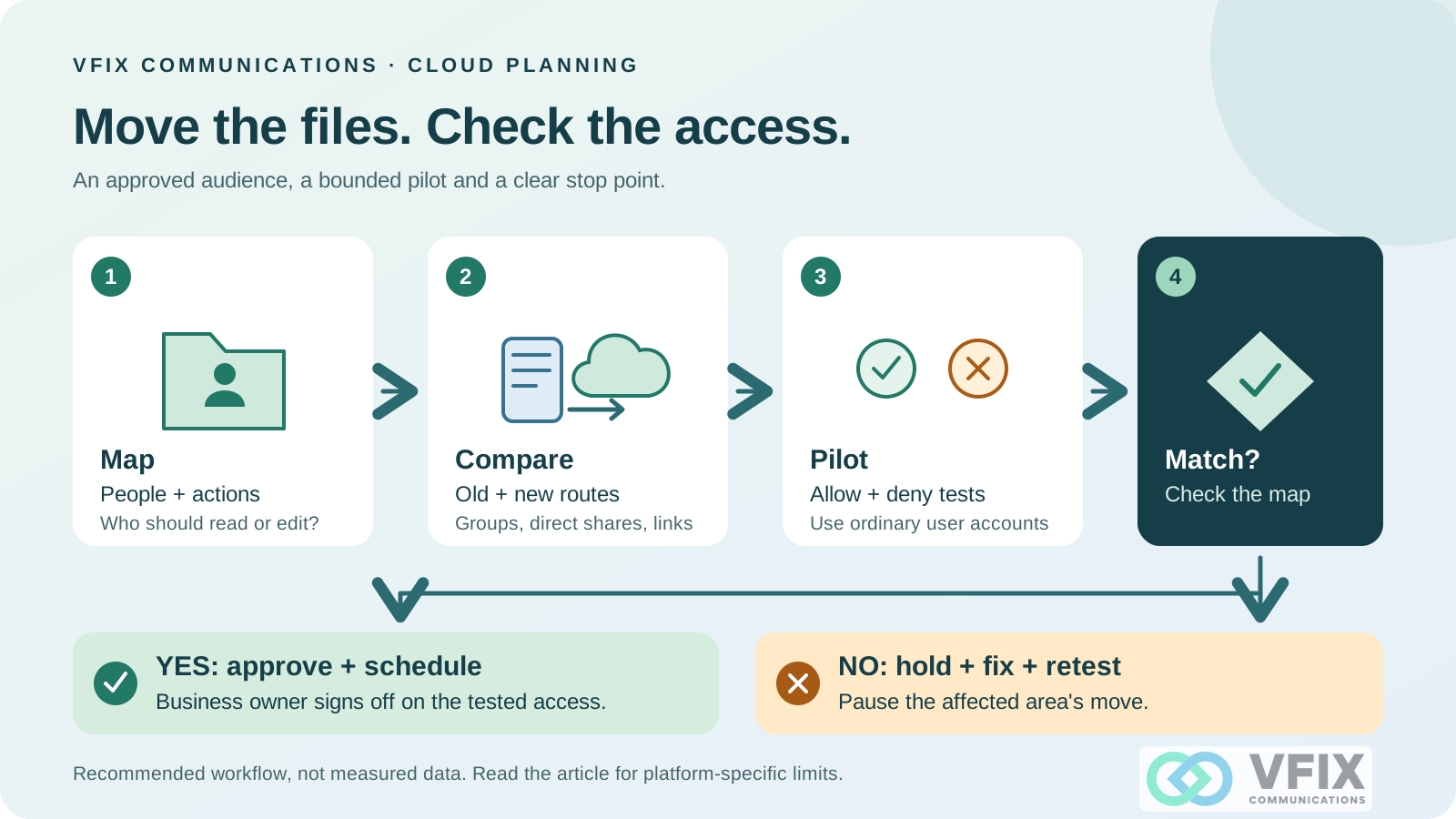
Checklist text: Map the approved audience and actions. Compare old and new access routes. Pilot both permitted and denied access. If the results match, obtain owner approval and schedule the move. If they do not, hold the affected area, fix the cause and retest.
Make the handover clear
Before cutover, document the authoritative working location, when staff should stop editing the old copy, who handles access problems and how a rollback would work. Agree on preservation and retention before retiring the old location. Keep backup and restore validation as a separate workstream; correct permissions do not prove that recovery works.
Start with one folder today. Ask its owner: who needs to read, who needs to edit, and whose access should fail? Give the migration team those answers to build and test.
Planning a cloud move for your Bay Area office? Explore VFIX's managed IT services or dental IT support, then talk with VFIX about migration planning and the support scope you need. Bring a list of systems and access owners, not passwords, financial records or patient files.
Scope: This is an operational planning checklist, not a platform configuration runbook, legal advice or a compliance assessment. Features and migration behavior depend on the product, settings and method used. Examples are hypothetical. Primary sources were checked October 23, 2026.