
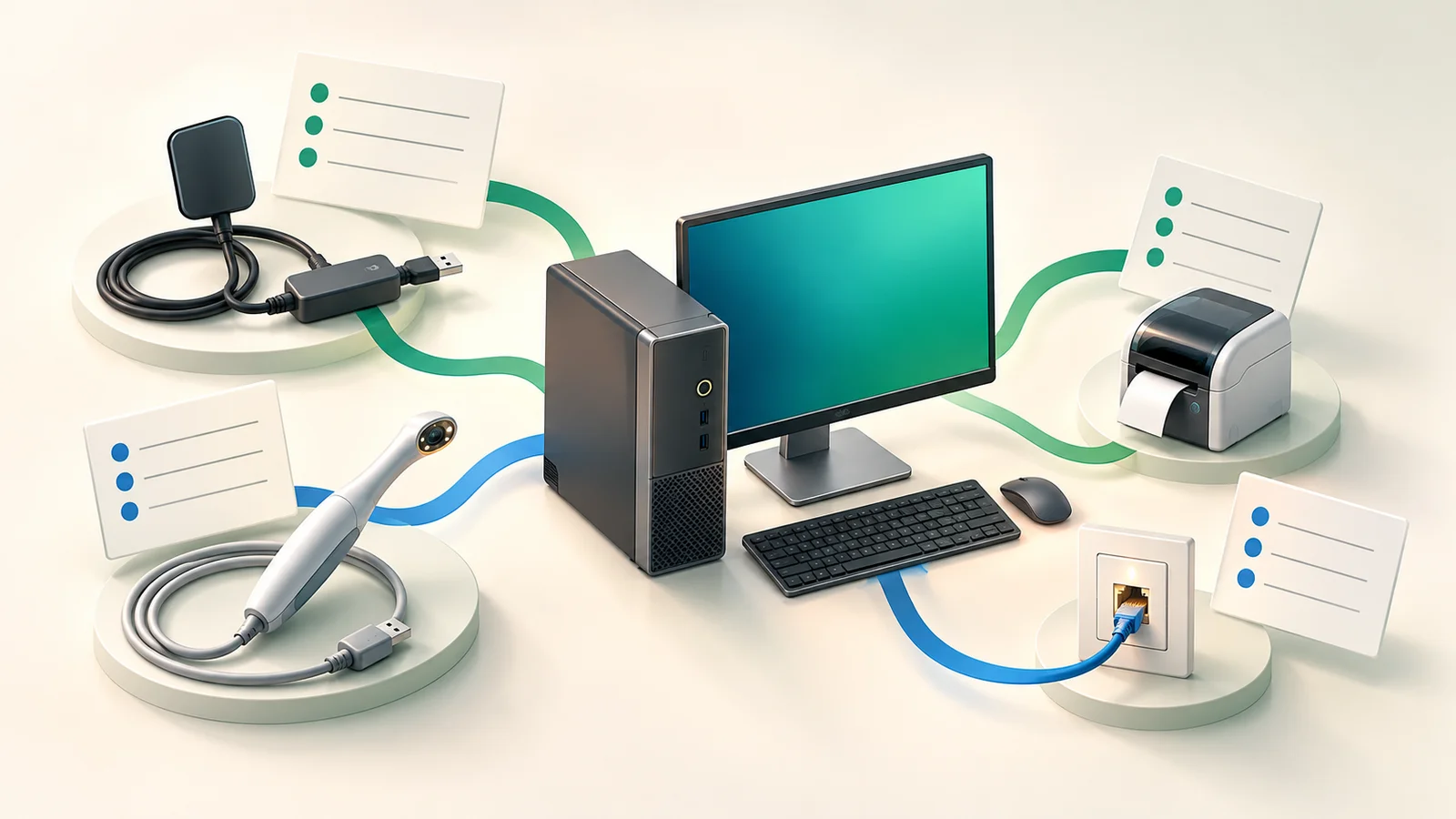
The replacement computer looks right on the quote. Then someone asks whether the X-ray sensor, imaging software and front-desk printer will work with it. Those answers belong in the buying decision, before the box arrives.
Choose a replacement dental workstation against the complete setup it must support: the exact software versions, attached devices, operating system, network connections and approved work tasks. Collect the requirements and support owners first. Then have your IT provider and the relevant software or equipment vendors review the proposed computer together.
This guide is a purchase-planning checklist for a Bay Area practice, not a universal hardware specification. The same approach can help a small professional office replacing a computer that runs specialist applications or peripherals.
Start with the job, not the processor
Write down where the computer will be used and what a normal working session involves. A reception desk might need scheduling, document scanning and label printing. A treatment-room workstation might also need access to imaging software and a particular connected device. These are hypothetical examples; make your list match your practice.
Ask the people doing the work which tasks must operate together. Include the monitor arrangement, physical mounting or space constraints, wired connections and every peripheral that needs to remain usable. A computer quote should answer that list, rather than leave the installer to discover it later.
Do not assume the current computer is a complete specification for the new one. Record what is installed, then ask which parts are still supported in the proposed configuration.
Read the version and the footnotes
Microsoft’s Windows 11 specifications explain that some applications require more than the operating system’s minimum hardware specifications. Passing the Windows requirements is therefore one check, not a dental-software compatibility decision.
The Dentrix System Requirements 2026 document, published in April 2026, tells readers to confirm third-party add-on requirements with the issuing vendor. It also illustrates why footnotes matter: its workstation table lists Windows 10 and 11, but a footnote says Henry Schein One will no longer support installing Dentrix on Windows 10 after June 30, 2026.
That is a specific Dentrix example, not a rule for every dental product or version. For your purchase, obtain the current requirements for each installed application and device. Keep the document date or vendor confirmation with the quote. If two requirements conflict, stop that purchase decision until the vendors and IT provider resolve the conflict.
Build a short workstation purchase brief
Copy these fields into your buying notes. Keep patient information, passwords and license keys out of a general quote request.
- Role and work tasks.
Location, staff owner, essential tasks, applications used together, displays and physical constraints.
- Software and versions.
Practice-management product and build, imaging product and build, relevant integrations, and the vendor support contact for each. Ask whether the change needs a software upgrade or license transfer.
- Attached devices.
Sensor, camera, scanner, printer or other peripheral model; connection type; approved driver or integration version; and the person confirming compatibility. Do not treat a matching plug as the entire answer.
- Operating system and computer configuration.
Ask the vendors to confirm the proposed OS edition and version, processor architecture, memory, storage, graphics and display requirements for this combination. Have your IT provider turn those answers into a specific model and configuration.
- Connections and data locations.
Record required ports, approved adapters or docks, network connection, application/server dependencies, and where documents and images are stored. Have the responsible provider identify any data stored locally that needs migration.
- Installation, testing and support.
Name who handles the computer, software, connected equipment and final acceptance. Agree a change window, test method, unresolved-item owner and a fallback if the new setup cannot be accepted.
A useful brief can contain blanks. A blank identifies a question that still needs an owner. It becomes a problem when “not confirmed” quietly turns into “probably compatible.”
A simple example: the sensor follows the workstation
Imagine a practice replacing one treatment-room PC while keeping its existing sensor. The practice-management vendor confirms its software requirements, but the sensor’s approved driver and imaging integration have not been confirmed for the proposed OS.
That hypothetical purchase is not ready simply because the new PC has more memory. The next action is to identify the sensor model, imaging version and proposed OS, then obtain the equipment or imaging vendor’s answer. Ask whether an approved interface, adapter, driver or software change is needed, and who will supply and support it.
Do not experiment with clinical equipment, install an unverified driver, or disable protections to make an unsupported combination appear to work. Keep the unresolved requirement visible in the quote review.
Agree what “installed and working” means
Before the change, have your IT provider and vendors agree a safe acceptance plan. Use vendor-approved demonstration or test data where available. Any clinical-device test should follow the responsible vendor’s instructions and the practice’s approved process.
- Confirm an authorized user can sign in and open the required software.
- Check the agreed imaging, scanning and printing tasks through an approved test method.
- Confirm expected files or images are accessible from their intended locations.
- Have the staff owner check the normal workflow and record any limitation.
- Document the installed versions, test results, support contacts and the decision to accept or hold the replacement.
Keep the old computer and required records under the practice’s control until the agreed migration and acceptance steps are complete. Ask your IT provider to handle its eventual data sanitization or disposal through the approved process. A successful startup alone is not the same as an accepted workstation replacement.
Bring the brief to an IT planning conversation
VFIX’s dental IT service page describes workstation-readiness checks and software/equipment vendor handoffs. Book a consultation to review your existing setup, the proposed replacement and a suitable project scope. Support for your version and configuration should be confirmed; clinical equipment repairs and vendor-only software changes remain separately scoped.
After replacement, keep account, update and backup responsibilities clear. Read A practical security baseline for a small business for that wider conversation.
Sources checked October 27, 2026. General planning guidance; this is not a product compatibility approval, clinical procedure or compliance determination.