
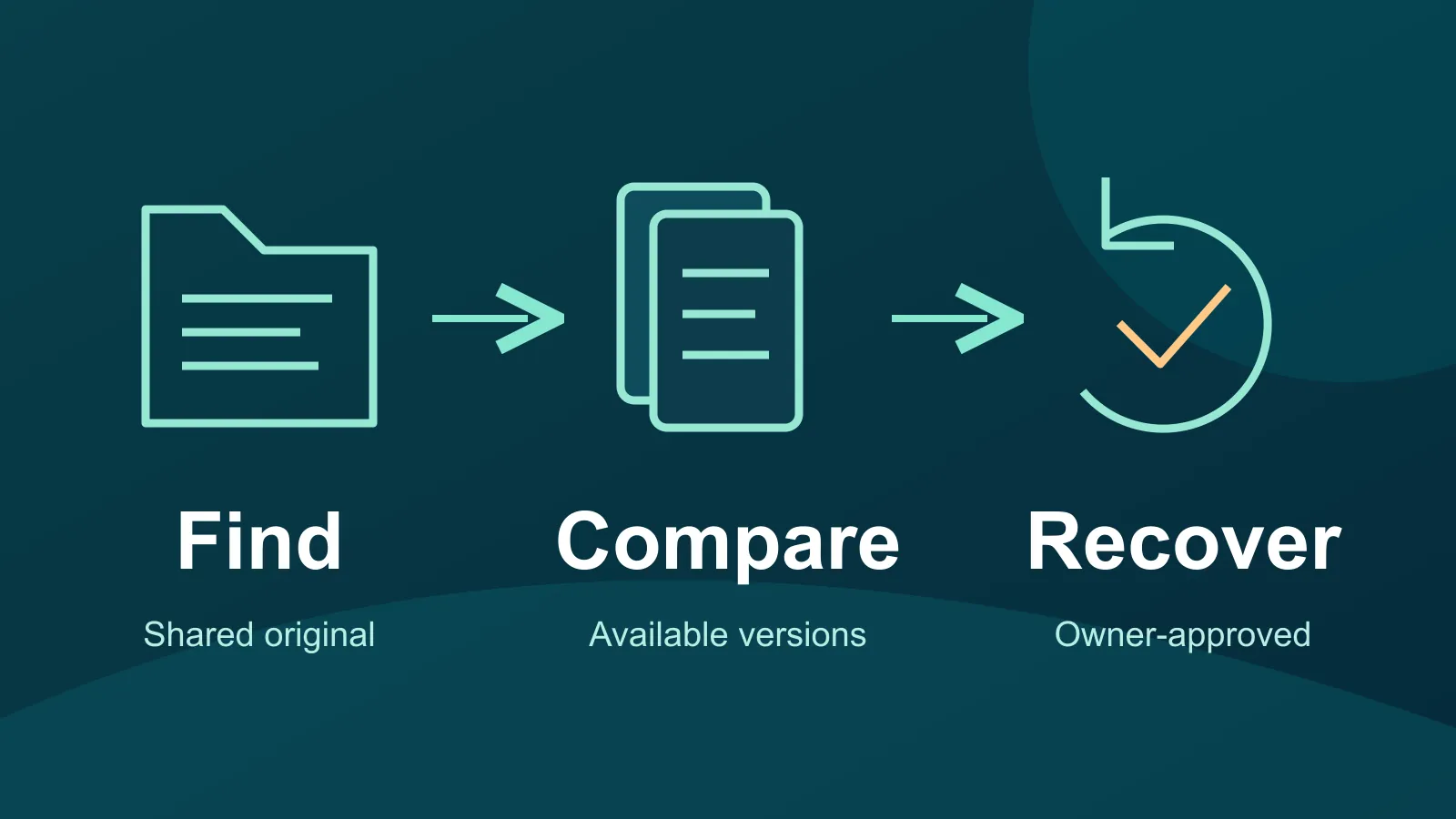
A proposal has the wrong figures. Yesterday's edits were right, but the shared file now contains something else. Before anyone starts rebuilding it from memory, find out whether the version you need is still available.
For a file stored in OneDrive or SharePoint, version history can help recover an earlier state. Check the actual file and its available versions first, coordinate with its owner, and preserve today's useful changes before restoring anything. Then ask a separate question: what does your organization's backup plan cover if the required version is missing?
Start with the file, not the folder on your desktop
In an illustrative example, a Bay Area design studio discovers that a project spreadsheet has lost an important calculation. The manager has a downloaded attachment, a synchronized copy and a link to the shared workbook. Those are three places to investigate, not proof that they all contain the same history.
Record the shared file's location, owner, approximate last-known-good time and the change you need to undo. Use your normal trusted Microsoft 365 route to locate the original. Ask colleagues to pause edits while the owner reviews the recovery options. Avoid creating several competing replacements called “final.”
Microsoft's version history overview explains that users can view an earlier version without replacing the current one. Restoring an earlier version makes it the new current version. That distinction matters when part of today's work is still valuable.
Compare before you replace
Open the available history and identify the candidate version. Compare the content that matters: the calculation, paragraph, drawing revision or attachment. A timestamp helps narrow the search, but it does not tell you whether a document is the version the business actually approved.
Before a restore, agree who will preserve any valid recent work using an approved location and method. If the file contains client or patient information, keep those copies within the organization's approved systems. Do not email a sensitive file to a personal account to make the comparison easier.
Have the file owner decide whether to restore a whole earlier version or recover only the missing content through an application-supported method. Afterward, check the result in the application people normally use. Tell collaborators which file is authoritative and when they can resume work.
Why “we have version history” is an incomplete answer
Microsoft documents version limits at organization, site, library and OneDrive account levels. Available history can depend on those settings. Some limits use version counts; others include expiration. Versions removed because they exceed library limits bypass the normal recycle bin.
That is why this guide gives no universal number of days you can go back. Ask your administrator to confirm the effective settings for the actual library, rather than assuming a default applies to every folder. Do not reduce limits, delete versions or run a cleanup while investigating a missing version.
Put recovery promises into concrete questions
Version history is a useful built-in recovery feature. A separate backup service is another product and configuration to examine. Neither label tells an owner exactly what is recoverable in their environment. Use these questions at the next IT review:
- What is covered? Identify the actual site, user account, library and file types. Ask what is excluded from any backup job.
- How far back can this item go? Request the effective version settings and the backup retention policy. Keep “configured” separate from “confirmed by a test.”
- Who can perform recovery? Name the person who authorizes it and the administrator or provider who carries it out. Ask what happens if the normal account is unavailable.
- Where will the recovered content appear? Clarify whether the method replaces a current file or produces a separate copy, and how collaborators will be told.
- What evidence do we have? Record a safe test date, the item tested, the recovery point and the owner's content check. Leave unknown answers open for follow-up.
Keep the test smaller than the business risk
Use a nonsensitive practice document to learn the workflow with your IT contact. Make an identifiable harmless edit, inspect an earlier version and review the result. Do not experiment by deleting production folders or rolling back an active shared library.
A successful file-version exercise establishes only what you tested. It does not demonstrate recovery of a deleted account, an entire application or every business record. For a broader recovery exercise, use our guide to testing whether you can restore the work you need.
A clearer next conversation
Bring one important file location and your unanswered recovery questions to an IT review. VFIX's backup and recovery planning defines protected data, retention and recovery assistance in the proposal. Book an IT consultation to discuss the scope your business needs. Existing Microsoft 365 settings and any selected backup service should be checked together; this article does not establish your current coverage.
Scope: Microsoft 365 OneDrive and SharePoint work environments. Primary sources checked October 29, 2026. Product settings, permissions and recovery options must be confirmed for your environment.