
A supplier says they sent the quote. Your project coordinator has refreshed Outlook twice, and the afternoon deadline is getting closer. Before someone asks IT to let everything from that supplier through, find out what happened to the message.
For a Bay Area small business, a missing email can hold up scheduling, purchasing or customer work. A short search-and-review process helps recover legitimate mail without turning one delivery problem into a permanent security exception.
First, check the mailbox
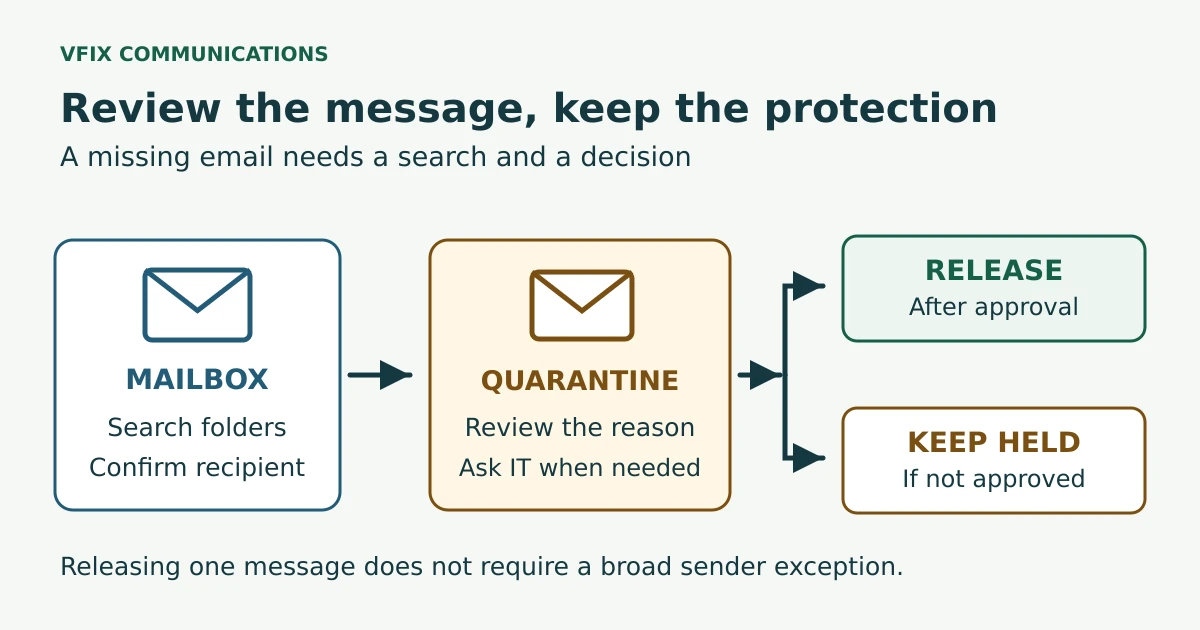
Confirm the exact recipient address with the sender, along with the subject and approximate send time. Then search the correct mailbox by sender and subject, widening the date range if necessary. Check Junk Email, Deleted Items and Archive separately rather than assuming an Inbox search covered everything.
Junk Email and Deleted Items are mailbox folders. Microsoft provides recovery options for messages in those folders. Quarantine is a separate place where Microsoft 365 holds messages identified as potentially dangerous or unwanted. Finding nothing in Outlook does not establish that the sender never sent the message.
Avoid asking the sender to strip attachments or use a personal email account to get around the problem. Give IT the original details to investigate.
Check quarantine through a trusted route
Open the Microsoft Defender quarantine page using your work account, preferably through an IT-provided bookmark. Do not rely on an unexpected “release your email” notification to get there.
Look for the expected message and review its sender address, subject, received time and quarantine reason. Your organization’s policy determines what you can see and do. Microsoft’s user quarantine guide explains the available actions.
You might see Release, Request release, or neither. Requesting release sends the decision to an administrator; it does not deliver the message immediately. If the message is unavailable or no request option appears, contact IT instead of trying another account. Note the Expires date if shown, because quarantined messages are automatically deleted when their retention period ends.
A familiar display name is not enough to establish that a message is safe. For an unexpected attachment, changed payment instructions or unusual urgency, verify the request through a contact method you already trust.
Give IT a useful handoff
A support request should include:
- The sender’s full email address and intended recipient.
- The subject, approximate send time and time zone.
- Where you already looked, including quarantine.
- Any quarantine reason, expiry date or release-request status you can see.
- The business deadline and whether you were expecting the attachment or link.
Keep the ticket focused. Do not forward a suspicious attachment around the office to ask whether anyone recognizes it. Business context helps IT assess a message; a looming deadline should not replace that assessment.
Let the administrator make the release decision
IT can review the quarantine reason, applicable policy, message headers and available security details before approving or denying release. Microsoft restricts direct user release for certain threats, including high-confidence phishing and malware, regardless of broader user permissions. See Microsoft’s quarantine FAQ.
If IT confirms a false positive, it can consider submitting the message to Microsoft for analysis through the organization’s approved process. Releasing one reviewed message and creating an exception for future messages are separate decisions. Do not add a broad sender or domain allow entry simply to close the ticket. Microsoft’s administrator guide documents the release and submission options.
If the message still cannot be located, IT can use Exchange Online message trace to investigate whether the service received, rejected, deferred or delivered it.
Close the loop
After an approved release, confirm that the recipient actually received the message and can resume the work. For repeated problems, keep the affected message details together so IT can investigate the pattern rather than repeatedly loosening controls.
Give staff one support contact and a clear escalation route for urgent missing mail. Explore VFIX IT help desk and support or contact VFIX to discuss a support workflow for your team.