
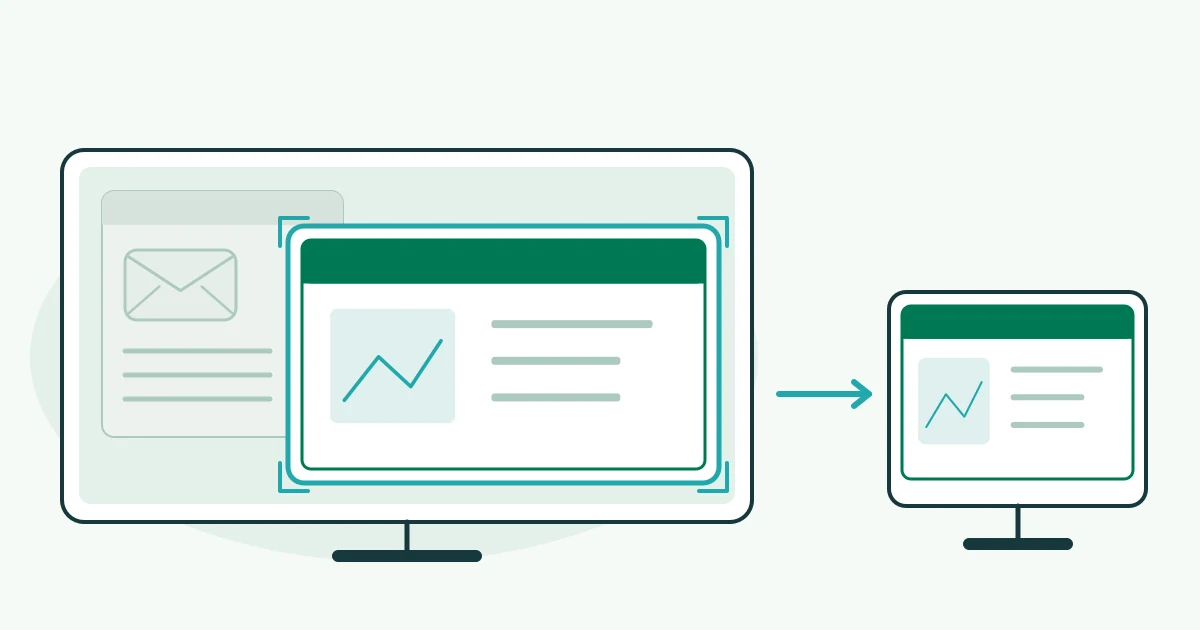
The client needs to see one proposal, not everything else happening on your computer. Before a screen share, decide exactly what the audience should see, prepare that view and keep unrelated work out of it.
For a Bay Area firm presenting a design, estimate or project update, that small habit is more useful than assuming the meeting app will hide every private detail. The same approach helps a practice manager demonstrate a workflow without opening real patient records.
Start with the smallest useful view
Microsoft Teams lets presenters share a screen or a window. Sharing a prepared window can reduce what you expose compared with showing the entire desktop. It is not a guarantee: anything sensitive inside that selected window still needs attention. See Microsoft's guide to presenting in Teams for the current controls.
For a proposal review, open the approved proposal in its own window. Close unrelated tabs in that window, check the document title and remove confidential details from the material you intend to display. Do not rely on a quick scroll past an account number or a client name.
If your demonstration genuinely needs several applications, plan where you will stop sharing between them. A pause is better than navigating private work in front of an audience.
The share boundary
Audience → Approved content → Prepared window → Confirm view → Stop sharing
- Audience: Who is in this meeting, and may they see the material?
- Content: Is this the correct, approved version?
- Window: What else is visible inside it?
- Check: Can a colleague confirm the intended view in a harmless rehearsal?
- Stop: End the share before returning to private work.
Prepare the demonstration, not just the file
Use fictional or approved demonstration data when showing a business process. For example, a sample project with invented names is safer to rehearse than a live customer account. Clearly label sample data so it cannot be mistaken for a genuine order or patient record.
Close unrelated email and messaging applications before presenting, and check your notification preferences using your organization's approved process. Microsoft recommends preparing the workspace and closing programs or tabs containing confidential information in its screen-sharing guidance. Treat notification suppression as another precaution, not as permission to leave sensitive material open.
Leave computer audio off unless your presentation needs it. Teams' audio-sharing control can make computer sounds, including notifications, audible to attendees. Sharing your view and giving someone control are also different decisions: the latter lets that person interact with the shared screen. Do not grant control merely because someone asks to see a document.
If the Share option is missing, don't work around the policy
A missing option may reflect an organization setting rather than a broken computer. Microsoft's content-sharing policy reference describes modes that allow desktop and application sharing, application sharing only, or neither. It also documents a browser limitation for the application-only mode.
Ask your IT administrator to check the relevant meeting policy and supported client. Do not move confidential files to a personal account or another meeting service to get around a restriction.
End the share before the next task
Select Stop sharing before opening email, searching another client's files or answering an unrelated request. If you discover that private information was visible, stop sharing and follow your organization's incident-reporting process. Record the facts you know without sending the sensitive content around again.
A good rehearsal uses harmless material and the same device and app you expect to use. It checks what attendees can actually see, not merely whether a button turns on.
Need a clearer meeting workflow? Explore VFIX meetings and collaboration, or talk with VFIX about your existing setup and support needs.
General operational guidance, not a legal or regulatory compliance assessment. Available controls vary by platform, client and organizational settings. Follow your organization's confidentiality and incident procedures.