
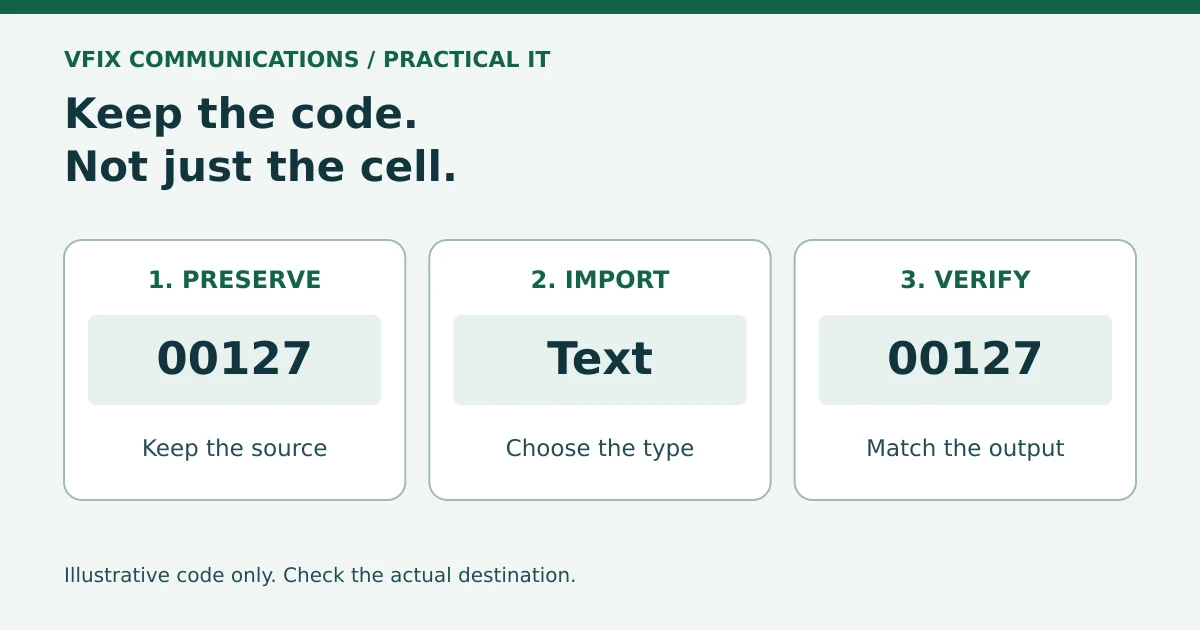
A customer export looks tidy in Excel, but an ID such as 00127 may now read 127. For a Bay Area service business matching records between scheduling, billing and customer systems, that is more than a cosmetic difference. A familiar-looking spreadsheet is not proof that the import preserved its identifiers.
This checklist is for desktop Excel on Windows. Menu labels vary by version. Use an approved work device and keep customer exports in approved storage.
Treat identifiers as codes, not quantities
Customer IDs, product codes and postal codes can contain digits without being numbers you should calculate with. Excel can remove their leading zeros. Numeric values also have a precision limit of 15 significant digits, so a longer identifier can lose digits if interpreted as a number. Changing a damaged value to Text afterward does not restore the original. Microsoft explains these limits in its guide to leading zeros and large numbers.
Start from the original export
- Keep an untouched source copy. Record which system produced it and when. If you already opened the CSV and values look wrong, do not save over the source. Compare against the exporting system or request a fresh export. Do not guess missing digits.
- Import instead of relying on a double-click. In a blank workbook, use Data > From Text/CSV. Check the preview for the correct separator and columns, then choose Transform Data rather than loading immediately. Microsoft's CSV import instructions explain that directly opening a CSV uses Excel's current default format settings to interpret its columns.
- Keep ID columns as Text before conversion. Where the import preview offers data-type detection, turn it off so columns begin as Text. In the query editor, confirm each identifier column is Text before loading. Set quantities or amounts to suitable numeric types separately if the work requires them. If a previous conversion has already changed an ID, restart from the untouched source rather than adding Text formatting afterward. Microsoft's Text/CSV connector documentation describes the detection setting and warns that inferred types can be wrong.
Check the handoff, not just the preview
Before importing the result into a business application, use a small, authorized test batch and check:
- An ID with leading zeros still matches the source character for character.
- A long identifier retains every digit, including its final digits.
- The row count and column headings match the intended export.
- The destination matches the intended customer rather than creating an unexpected duplicate.
These are practical verification steps, not a guarantee that every destination accepts the same file. Follow that application's import specification and approval process. Save working Excel files separately from the untouched export. If the destination requires a new CSV, verify that actual output too; CSV does not retain all workbook features, and reopening it can trigger interpretation again.
Make the next import less fragile
Write down the source, required columns, identifier types and who approves the upload. Keep a harmless sample with representative codes for testing. Do not send a full customer list to an unapproved online converter or paste private records into a support request.
If a recurring export needs manual repair every week, talk with VFIX about the workflow. Bring the application names, the step where values change and a redacted example. The goal is a repeatable handoff, not a prettier spreadsheet.