
The designer has delivered the brochure. The accountant has finished the year-end questions. The vendor has sent the final proposal. Your team closes the task, but the folder shared during the work may still be available.
For a small business, project closeout is a useful moment to review that access. Start with one completed project, its document owner, and the people who still need the files. Keep the records your business needs while removing access that no longer has an approved purpose.
Look beyond the email invitation
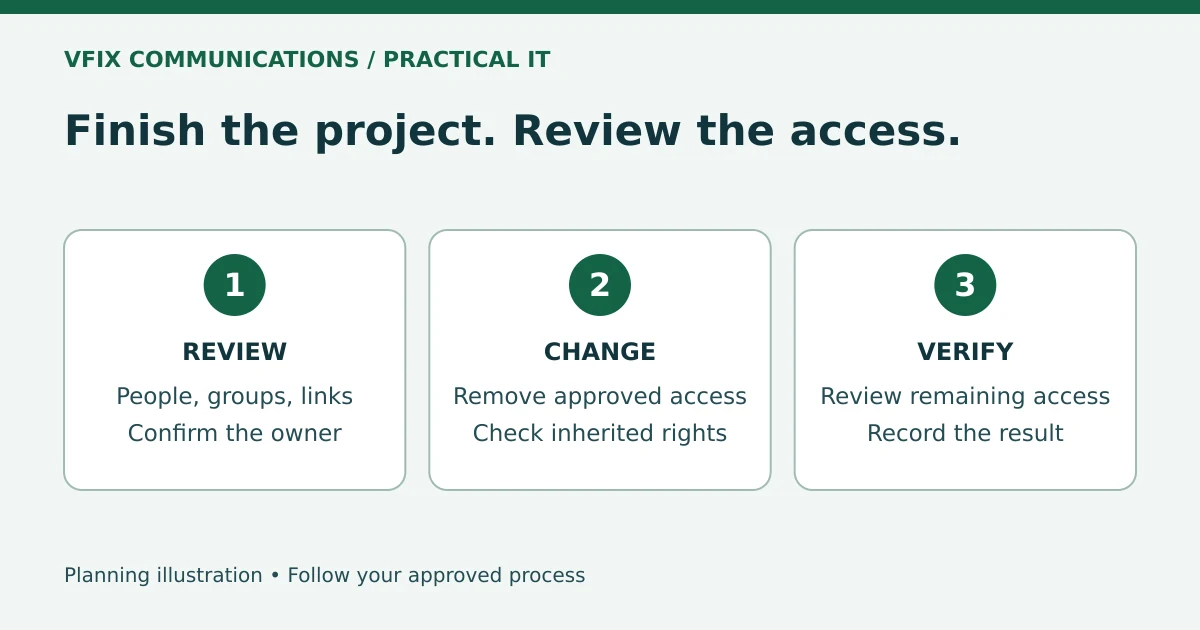
An old invitation is only one clue. In OneDrive or SharePoint, select the actual file or folder and open Manage access. Review people, groups, and links. Microsoft’s panel can also show how a person receives access, including through a group with access to the site. Microsoft’s access-review guide explains where to look.
Make a short closeout note:
- Which project and folder are being reviewed?
- Who owns the business decision?
- Which collaborators still need access, and why?
- Which links or permissions should end?
- Who will verify the result?
Keep the note in your approved work system. Avoid copying live sharing links into a broadly visible checklist.
Identify what each link allows
Microsoft distinguishes several link types. An Anyone link can be used by whoever has it, without signing in. An organization link is limited to people inside that Microsoft 365 organization. A Specific people link works for the named recipients. Other permissions can still give someone access to the same item. Microsoft’s sharing and permissions guidance describes these differences.
Also check the permission level. A recipient who needed to edit a draft may only need a final reference copy, or may no longer need access at all. Ask the document owner to decide. Do not change a whole team’s access just because one supplier’s work has ended.
A folder deserves particular attention: edit permission can allow changes to the items within it, not just the original document you meant to send. Microsoft describes folder editing and the available sharing choices in its SharePoint sharing guide.
Remove the right access path
After approval, have an authorized owner or administrator make the specific change. Microsoft’s Manage access workflow supports removing a sharing link or changing direct access. If access is inherited from a parent folder or site, the relevant permission must be reviewed there. Removing one link is not proof that every route to the item has disappeared. Microsoft’s permission-management instructions cover these cases.
Do not delete the file simply to stop sharing it. Decide retention separately, especially for contracts, client records, or material subject to a legal hold. Removing access also should not be treated as recalling copies someone already downloaded.
For a Teams-connected workspace, involve its owner rather than experimenting with the underlying SharePoint permissions. Microsoft says private and shared channel membership must be managed in Teams.
Verify the closeout and set the next review
Reopen Manage access and confirm the intended link or permission is gone. Where a functional check is needed, arrange it with an approved test participant. Do not send a confidential link to a personal account or a new third party just to see whether it opens.
Record the change, any remaining access, and unresolved questions. If the outside collaborator still has a legitimate role, give that access a named owner and a review date instead of removing it blindly.
Expiration can help with future sharing. Microsoft lets administrators require expiration for Anyone links, but an expiring link is only one access control. It does not replace reviewing the other permissions a person may have. Ask IT which options apply to your organization. Microsoft’s sharing-settings reference explains the available controls.
For your next project, add “review external access” to the closeout checklist beside final delivery and invoicing. VFIX’s cloud services and migration information describes ongoing access review as part of cloud management. Contact VFIX to discuss your team’s cloud-access needs.
General IT guidance. Follow your organization’s data-handling, retention, and approval requirements; this checklist is not a legal or compliance determination.