
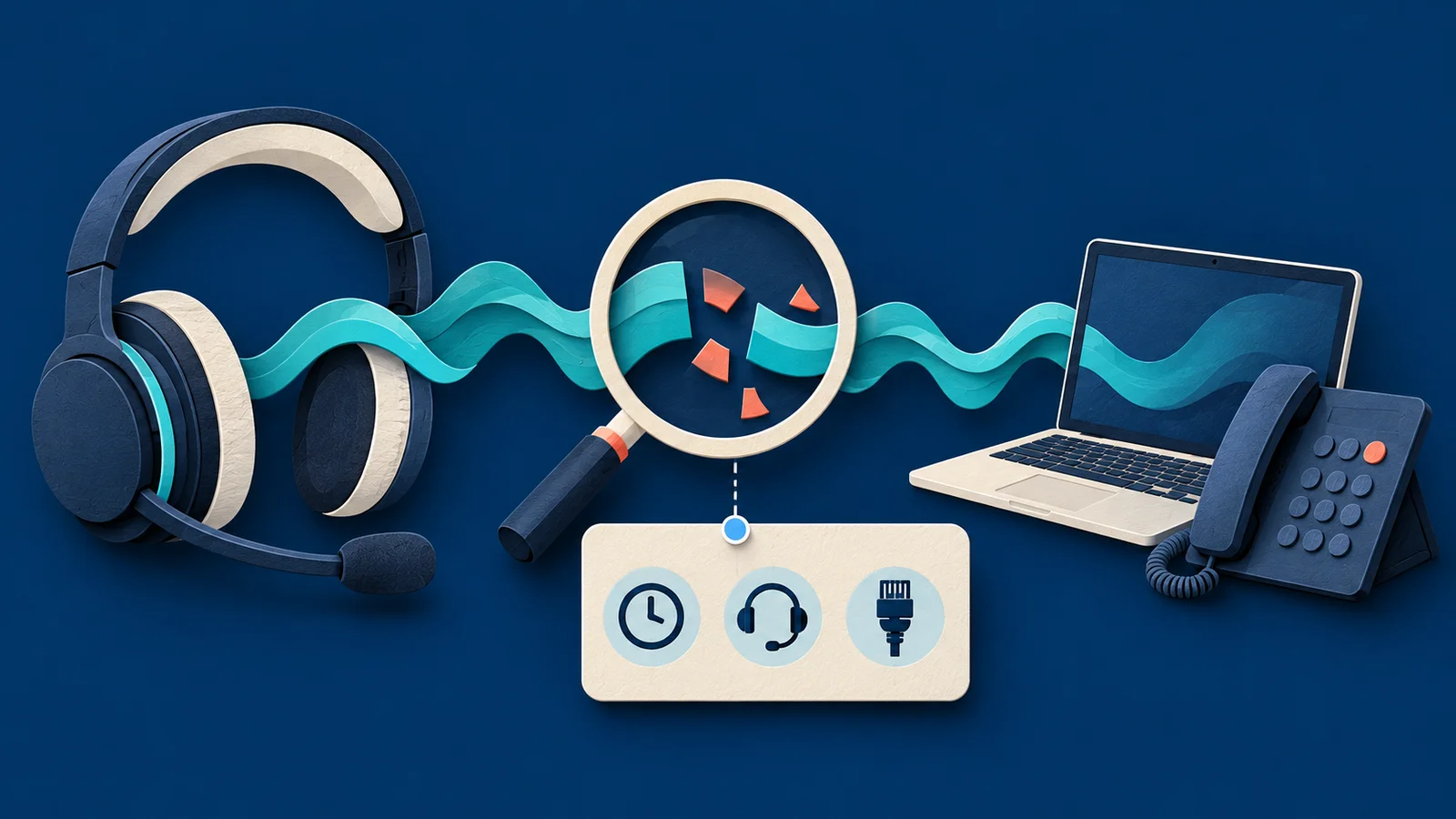
“The phone sounds bad” is a real problem, but a difficult starting point for a support ticket. A caller hears missing words, a colleague hears you clearly, and the next call seems normal. Before the details disappear, capture what happened.
Record the date, time and time zone, the call reference, who heard the problem, the device and app, the connection in use, and whether anyone else was affected. Send that evidence through your agreed support channel. You do not need to diagnose the cause before asking for help, and an urgent business interruption should not wait for a perfect worksheet.
This guide is for Bay Area small businesses dealing with intermittent business-call audio, including distributed professional teams and busy dental reception desks. Keep customer, patient and payment information out of general troubleshooting notes.
Describe which side heard the problem
Start with the experience, rather than a guessed explanation. Did you hear the other person breaking up, did they hear you breaking up, or did both sides notice it? Was it missing words, robotic sound, echo, a delay in conversation, or a disconnected call?
Also distinguish an incoming call from an outgoing one. “Incoming” describes who started the call; it does not say which person's audio sounded wrong. If the other party reported the problem, say so instead of presenting it as something you heard yourself.
“The caller said my voice cut out; I could hear the caller clearly” gives support a more precise observation than “the internet was slow.” It still leaves the cause open for investigation.
Build a six-part call-quality note
Use the fields below while the details are available. Mark anything you do not know as unknown; do not fill a gap with an assumption.
- When.
Date, time and time zone, plus the approximate point in the call when the problem began. Say whether it lasted briefly, continued, or came and went. Label approximate times as approximate.
- Which call.
The phone service, your extension or approved user reference, whether the call was incoming or outgoing, and a call ID or history reference if available. Share full phone numbers only through the support channel your organization approves, rather than a public post or general website inquiry.
- Who heard what.
Which listener noticed the issue, what they heard, whether both sides could continue, and the business impact. Use ordinary descriptions instead of guessing at a technical fault.
- Device and audio setup.
Desk phone, computer or mobile device; app and version if readily available; headset or speakerphone model; and USB, Bluetooth or another connection. Note a recently changed headset, dock, app or workstation without assuming it caused the issue.
- Connection and location.
Office or home workspace, wired network, Wi-Fi or mobile data, and whether a VPN was in use. Record the setup as it was. Do not disable a required VPN, endpoint protection or firewall to create a comparison.
- Scope and comparison.
Was this one user, one room or several colleagues? Did another call work normally on the same setup? Note any agreed test and what changed between observations. If nobody else has checked, say that rather than calling the whole office affected.
A useful subject line is “Intermittent outgoing audio, reception softphone, [date and time zone].” Put the detailed call reference in the private ticket, not the subject line if it contains sensitive information.
A useful report leaves room for the answer
Here is a fictional example with placeholders, not a customer incident or diagnostic result:
At [date, time and time zone], during outgoing call [private reference], the remote party said my voice had gaps. I heard them clearly. I used [app/version] on [computer] with [headset/connection] over office Wi-Fi. [VPN status]. The next call on the same setup [result or not checked]. Other staff [observations or not checked]. No configuration changes made. [Business impact].
This gives the support owner something to match to available records. It does not prematurely blame the headset, Wi-Fi, internet provider or phone service.
Let support choose the right measurement
A download-speed screenshot is one observation, not a complete description of a voice call. For example, Zoom's Network Connectivity Tool documentation lists a Phone Test that reports latency, packet loss and jitter, as well as the audio codec. Those are different observations from a single download-speed result.
Microsoft's current Teams troubleshooting guidance describes investigating specific calls and participant sessions, with network, computer-resource and device-related issue categories. It also explains that the depth and retention of telemetry vary by license and that investigation requires an appropriate administrative role.
These are named platform examples, not a statement that your VFIX service includes either product or every diagnostic feature. Ask your support owner which tools and records apply to your actual phone service, app and access level. A test taken later may describe a different moment from the affected call; include its time and conditions.
Change one thing through an agreed test
If support requests a comparison, agree the test first. For example, an approved test call using a known-working supported headset can help compare two audio setups. Record the original setup, the single change and the result. A better second call is an observation, not proof that the problem is permanently fixed.
Use an internal or other approved test destination and avoid disrupting customer calls. Leave router settings, traffic prioritization, VPN policies, port forwarding and security controls to the responsible administrator. Random changes can make the original conditions harder to reconstruct.
Do not start recording calls or exporting broad logs by default. Ask what evidence is needed and how it should be shared under your organization's rules. Keep passwords, access codes and unrelated customer or patient information out of the ticket.
Make the next step clear
Finish with the person affected, a safe callback method, business impact and when the setup is available for an agreed test. Use your existing communications support arrangement for an active fault. VFIX's client resources page provides service portals and team contact details.
Planning a better calling setup? Explore VFIX business communications or book a consultation to discuss users, devices, locations and support responsibilities. Confirm the diagnostic access, work and service scope applicable to your environment.
Also keep a separate plan for calls when connectivity is unavailable. Read The internet is down. Where should your business calls go? to plan that conversation.
Sources checked October 28, 2026. General evidence-gathering guidance, not a diagnosis, universal network specification or promise of a particular service feature.